Frequently asked questions about Combination Generator
What is the combination generator for in class?
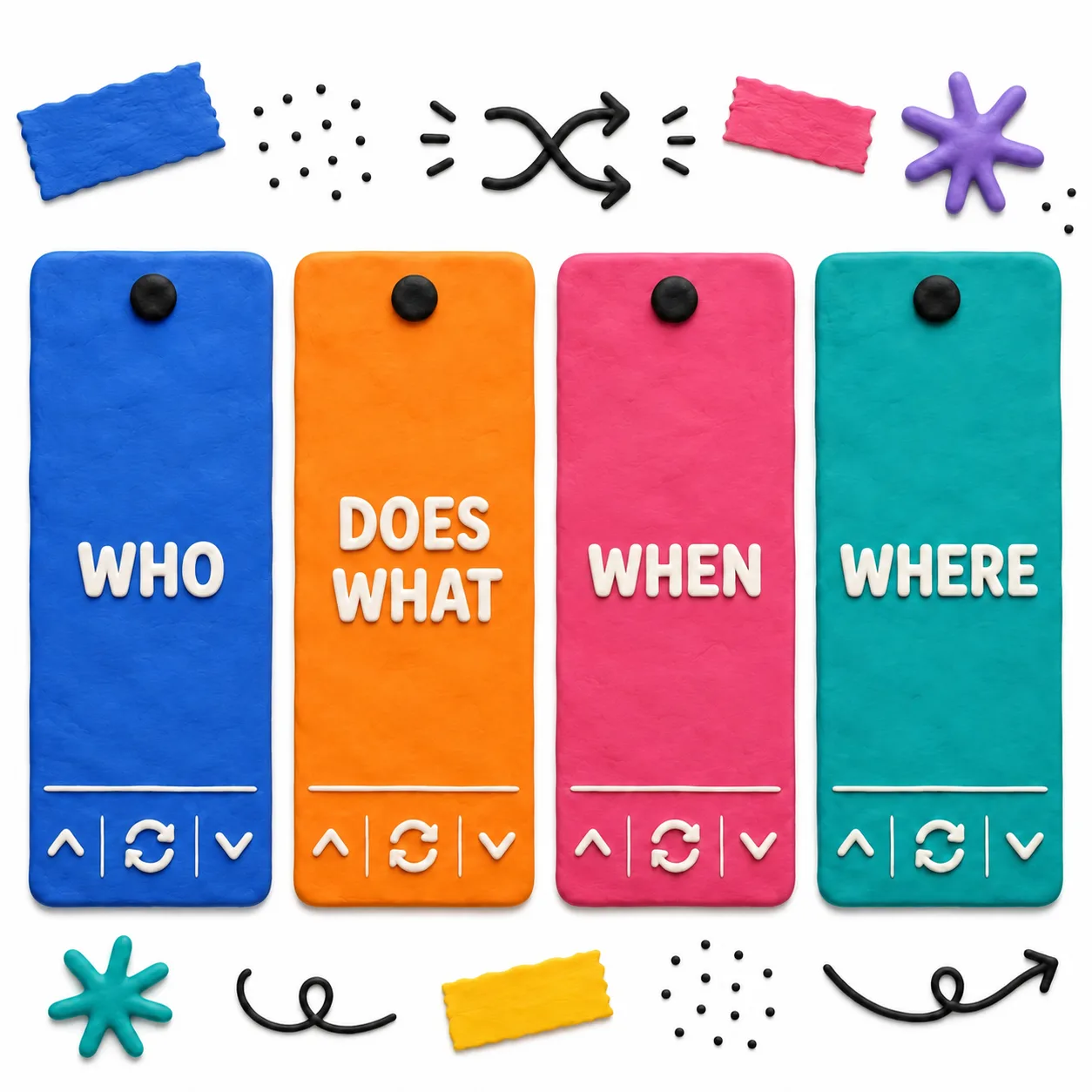
It generates random combinations between categories and uses them as a starting point for any activity that needs a prompt. The most frequent use is as a random story generator: the Who, Does What, When and Where columns combine at random and students build a story from that point. But the uses go much further: assigning positions in a debate, posing problem situations, generating varied assessment prompts, practicing vocabulary in a foreign language or drawing roles in a role-play. The underlying logic is always the same: chance eliminates the initial block, levels the starting conditions and gives the class a shared focus without anyone feeling the teacher chose for them.
What concrete ideas are there for using it in language arts?
Several dynamics work well in language arts: Microfiction in 5 minutes: spin the Narrative preset, everyone writes with the same combination and shares aloud. Genre rewriting: add a narrative genre column (horror, comedy, magical realism) and rewrite the same core in three different registers. Version comparison: spin several times and save the history; the group chooses which combination has the most potential and discusses why. Title before story: with the combination on screen, each student writes a possible title before writing the text. Collaborative writing by paragraphs: the first student writes the character introduction, the second introduces the conflict, the third the twist. It works especially well because nobody can say the topic 'didn't work out' — the combination was impartial.
How do you use it for debate and argumentation?
The Debate preset randomly assigns a position (in favor, against, devil's advocate, mediator), a topic and an audience. That solves two classic problems: students always choosing the stance they already agree with, and debate topics always being the same. With the generator, a student might have to defend nuclear energy in front of an audience of environmental activists, or argue against artificial intelligence in front of business people. That mismatch is productive: it forces research, separates personal opinion from argument and develops cognitive empathy. A useful variant: spin only the position column first, let the student prepare, then spin the topic right before they start speaking.
How do you adapt it for social studies and history?
Build a custom combiner with categories like Historical actor, Conflict or tension, Geographic context and Period. The result generates situations to analyze from different perspectives: 'a peasant, facing resource scarcity, in northern Mexico, during the Revolution'. Students can write a character diary, prepare a speech or analyze what decisions that actor would have made with the information available at that time. It also works for geography: columns of Region, Environmental problem, Affected group and Possible solution generate case studies ready to debate or research.
Can it be used for foreign languages?
Yes, and in several ways. The Vocabulary preset (Noun, Adjective, Verb) can be loaded directly in the language being studied to generate sentences at random, practice collocations or work on agreement. Another option: columns of Communicative situation (asking for directions, making a complaint, booking a table), Register (formal, informal, written) and Interlocutor (a tourist, the boss, a friend) generate scenarios for oral practice or written production. At advanced level you can add a Linguistic constraint column (without using the verb to be, only in the past perfect) to increase the challenge.
What dynamics work well for elementary school?
With younger children, the best approach is to reduce the number of columns (two or three) and use very visual and concrete items. Some ideas: The story character: columns of Animal, Superpower and Problem; they combine and draw the character before writing. The magic recipe: columns of Ingredient 1, Ingredient 2 and What the potion does; they invent a story or an explanatory text. The invented planet: columns of Sky color, Creature that lives there and Thing that doesn't exist on Earth; they build an oral or written description. The spinning animation is especially effective with children: it creates anticipation, everyone wants to see what comes out, and the moment of revealing the combination works as a natural motivation hook.
How do you use it to assess or close a class?
The Reflection Questions preset combines a cognitive level from Bloom's taxonomy (Remember, Understand, Apply, Analyze, Evaluate, Create), a topic or content worked on, and a response format (in one sentence, with an example, comparing two ideas, justifying with evidence). Spinning that combiner at the end of class generates different prompts for each group or student, making copying harder and making the assessment more authentic. It also works as an exit ticket: in the last five minutes, spin once and everyone answers that prompt on a piece of paper before leaving. It combines well with the Visual Timer to limit response time.
What else can it be used for beyond class?
Beyond the classroom, the generator has uses in teacher training and team dynamics. In training workshops: columns of Pedagogical strategy, Content and Educational level generate cases to analyze in groups. In collaborative planning: columns of Learning objective, Activity type and Grouping generate curricular design ideas to develop or discard. In team dynamics: columns of Discussion role (facilitator, synthesizer, critic, observer), Question and Topic generate structured conversations in meetings. In adult writing workshops: works the same as in the classroom but with more complex items and additional columns like Narrative point of view or Formal constraint.
How many columns and items is it recommended to use?
For projecting in class, between 3 and 5 columns is optimal: enough variety to generate surprising combinations without the screen becoming cluttered. With more than 6 columns, the text in each column becomes very small and the result is hard to read from the back of the room. As for items per column, between 8 and 15 is the range where the randomness feels genuine without being unpredictable: with fewer than 5 items, students quickly learn all possible combinations; with more than 20, some options never come up. If the activity requires many items, it is preferable to have several saved versions of the combiner than to load everything into one.
Can columns be spun independently?
Yes. Each column has its own spin button and arrows for navigating manually. That allows adjusting the combination element by element: if the character that came up is perfect but the location doesn't work, you can spin only the location column without losing the rest. You can also use the arrows to browse all items in a column in order, which is useful when you want to show all available options before the group chooses one. The history saves complete combinations, not individual columns, so it is best to use the 'Spin all' button when you want to record the result.
How does the spin animation and history work?
When you press Spin, each column shows items at random in rapid succession and progressively decelerates until stopping on the result, similar to a slot machine effect. If you use 'Spin all', the columns start staggered so the effect is more visually dynamic. The history bar at the bottom saves the last 10 generated combinations as colored chips: clicking any of them restores that exact combination in the columns. It is useful for showing several options to the group before deciding which one to work with, or for recovering a combination that was passed over.
Can categories and colors be customized?
Yes, everything is customizable. You can change the name of each column, add or remove items (one per line in the text editor), choose the background color of each column by clicking the color square on each card, and add or remove entire columns. Custom mode starts with two empty categories to build from scratch, but you can also start from any preset and modify it. Color changes are reflected immediately in both the editor and the game view.
Is it free? Do I need to sign up?
Yes, it is completely free and no sign-up is needed. Open the link and start immediately from any device: computer, tablet or phone. No download or account required.