Frequently asked questions about Interactive Timeline
What is this timeline creator and how does it work?
It is a free online tool for building and projecting an interactive timeline in class, without sign-up or installation. It works as a timeline generator with three modes: in Build mode the teacher adds events live while explaining; in Present mode the events are preloaded and revealed one by one (ideal for maintaining attention); in Sort mode students drag the shuffled events to their correct position in the chronology. Events are automatically sorted chronologically when entered.
Is it free? Do I need to sign up to create an online timeline?
Yes, it is completely free and requires no account or sign-up. It opens directly in the browser (computer, tablet or phone) like any web page. It works without an internet connection once the page is loaded, making it ideal for projecting in classrooms without stable wifi. The events you enter are automatically saved in the browser.
Horizontal or vertical timeline: which should you use?
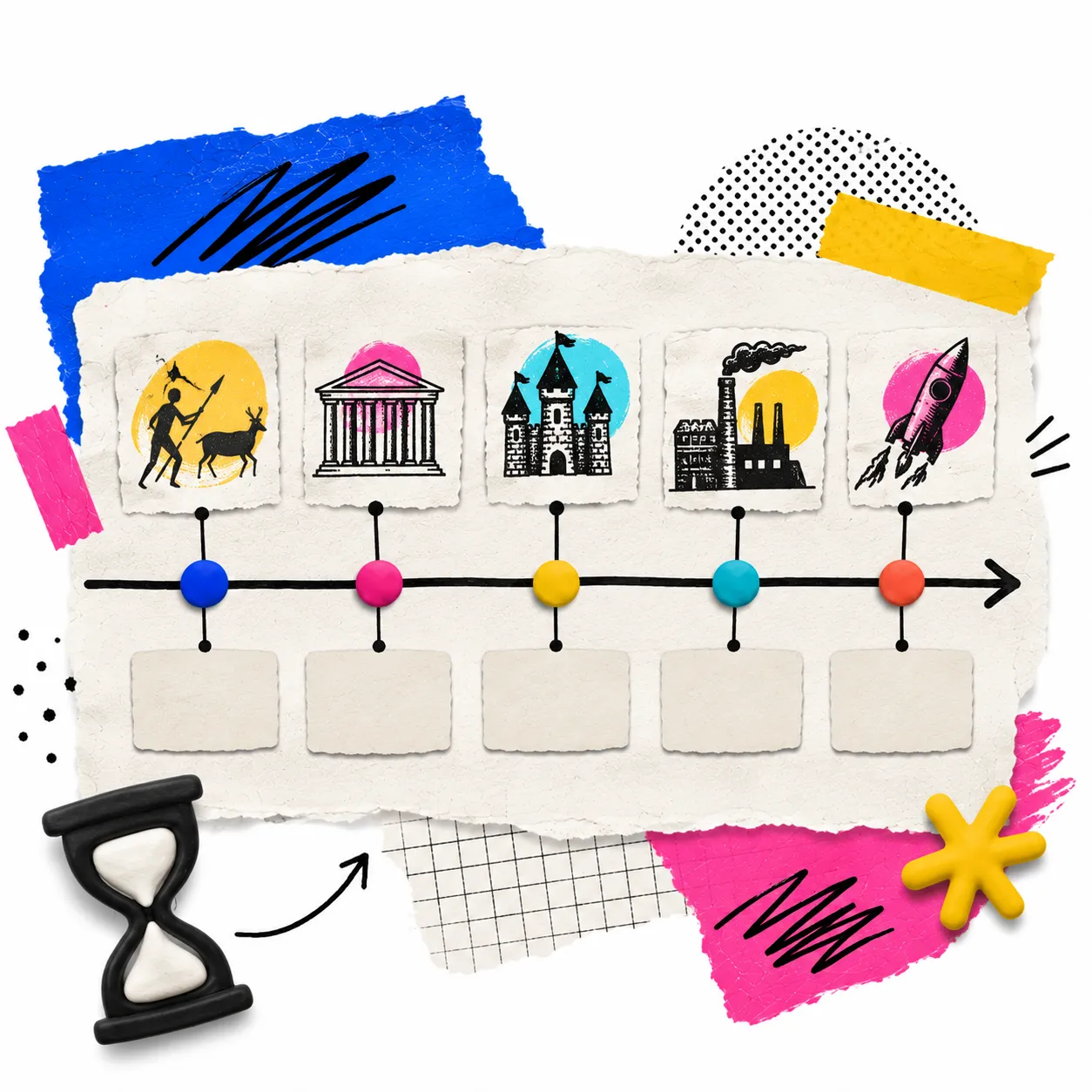
It depends on the context. The horizontal timeline is the most classic for projecting: events are distributed along an axis with cards alternating above and below, making it very readable on screen. It works best with 5 to 10 events. The vertical timeline scrolls downward and allows many more events without overlapping; it is ideal for long periods or when working from a tablet. You can switch between horizontal and vertical at any moment with the button in the top bar, even while projecting.
How do you make a creative and visually attractive timeline?
This tool already incorporates visual elements that make the timeline attractive without extra effort: each event can have an illustrative icon (star, rocket, fire, crown, book, globe and more than 25 options), the cards have a design with shadows and clear typography, and the timeline points have an accent color. To make it even more creative, choose icons that visually represent each event, use short and impactful titles, and add descriptions with curious facts that are revealed when you touch the card. The horizontal orientation with alternating above-and-below cards creates a dynamic visual journey ideal for projecting.
How do I build a timeline step by step?
To make a timeline with this tool: 1) Write the title (for example 'Industrial Revolution' or 'History of computing'). 2) Choose the mode based on how you will use it in class. 3) Add each event with its year, title and icon; events sort chronologically automatically. 4) Project the timeline on screen. If you want to save it, use the print button to export it as PDF. The whole process takes less than 5 minutes.
How many events can I add to the timeline?
There is no fixed limit. For projecting on screen, between 5 and 12 events in horizontal orientation is usually most comfortable. If you need a timeline with more events, vertical orientation allows many more with scrolling without them overlapping. You can change orientation at any moment from the tool's top bar.
How does Sort mode work and what is it for?
In Sort mode events are loaded in the correct order and the tool shuffles them before displaying them. Students see the events as loose cards at the top and the timeline with numbered slots below. They drag each card to the slot they think is correct, and when they press 'Check' they see correctly placed ones in green and incorrect ones in red. It is very useful for assessing chronological understanding in a playful way without paper.
Can I use this timeline for any subject?
Yes. It is versatile for History (revolutions, historical periods, biographies, world or local history timelines), Natural Sciences (evolution, biological stages, sequential experiments), Literature (order of events in a work, an author's life), Technology (history of inventions, computing timeline) and any content with a temporal or sequential dimension. It also works for showing a project schedule or the stages of a teaching unit.
Can I edit events after creating them?
Yes, the timeline is editable at any time. In Build mode you can double-click any event to edit it directly from the projected screen. In Present and Sort modes, return to the settings using the gear button in the top bar: there you can modify, delete or add events. Changes apply when you return to the timeline.
How do I use the timeline for an expository class?
Present mode is ideal for expository classes. Load all events before class (including descriptions with key facts), project the timeline and use the spacebar or right arrow key to reveal each event when you choose. Events not yet revealed appear as shadows, creating suspense and maintaining attention. Touching an already-revealed event expands it to show its description.
Can I print the timeline or download it as PDF?
Yes. This tool works as a printable timeline generator: the print button in the top bar opens the browser dialog, where you can choose Save as PDF without installing anything or signing up. The design automatically adapts for printing in landscape A4, hides all buttons and controls, and shows all events even if you have not yet revealed them, which is useful for having a printed reference copy. Works in Chrome, Firefox, Edge and Safari, on both computer and Mac.
What pedagogies support the use of timelines in the classroom?
The timeline falls within Visible Thinking: externalizing and organizing knowledge in space. Sort mode connects with Formative Assessment, revealing in real time how well students understand the chronological sequence. It is also a Question-Based Learning tool when used to discover the correct order as a collaborative challenge.
What competencies does working with a timeline develop?
Building and analyzing chronologies works Critical Thinking by evaluating cause-and-effect relationships between events, Metacognition by reflecting on what is and is not known about a period, and in group sorting mode, Collaboration and Argumentation by discussing the correct order among peers.